

BookRouter™ is the home for everything you do with your Bibliopolis account: cataloguing inventory, routing books to marketplaces, managing orders, processing payments, and reporting on your business.
BookRouter™ is the home for everything you do with your Bibliopolis account: cataloging and managing inventory, routing your books to marketplaces, receiving and reviewing your orders, processing payments, and understanding your business through reports.
Don't see BookRouter™ when you log in? See How to Access Your New BookRouter™ Dashboard
The Dashboard
Dashboard: Your landing page—sales at a glance, open orders, marketplace status, and anything that needs attention. See A tour of the BookRouter™ dashboard for more information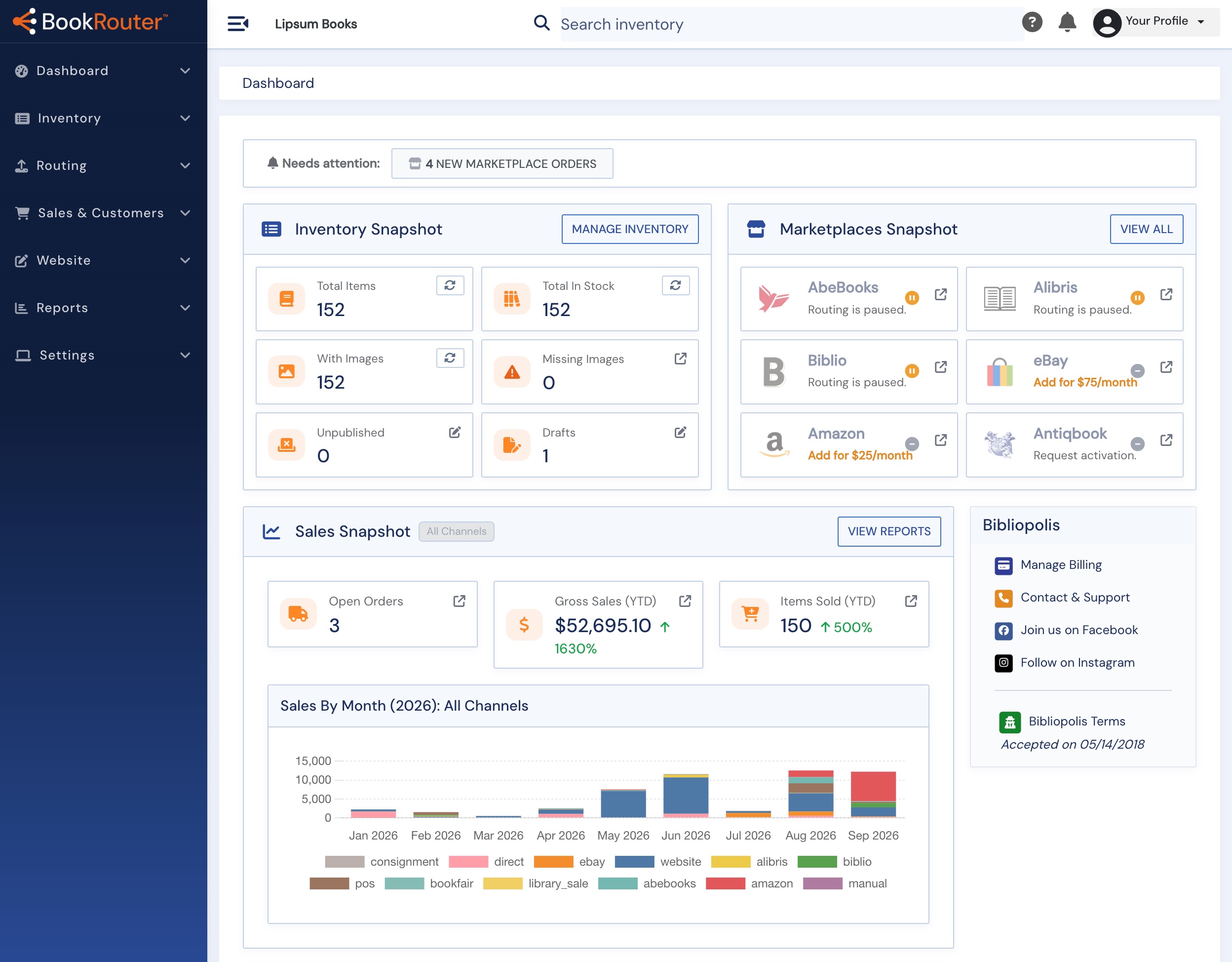
The Navigation Menu
The navigation menu has six sections not including the dashboard, Inventory, Routing, Sales & Customers, Website, Reports, and Settings.
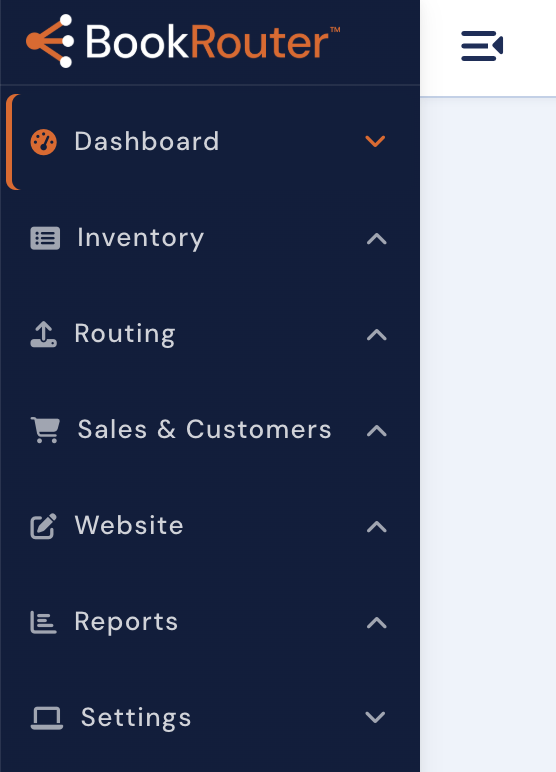
- Inventory: Where your books live. Add and edit items with ISBN lookup, manage images, organize categories and catalogs, upload from your cataloguing software, and edit in bulk. Start with Adding and editing books in your inventory.
- Routing: Sends your inventory to AbeBooks, Amazon, eBay, Biblio, Alibris, and more, on a schedule, with per-marketplace pricing rules. See Connecting a marketplace.
- Sales & Customers: Sales covers website orders, the point-of-sale register, and invoicing, with every channel landing in one sales history. See Selling an item and recording a sale and Point of Sale: taking a payment. Customers puts each customer on one page: purchases, invoices, want lists, wishlists, inquiries, carts, and mailing-list subscriptions.
- Website: Runs your full ecommerce site — content and layout management, merchandising, and marketing tools. It's the one toolset sold separately; every other section is fully functional on all BookRouter™ service levels. See website pricing.
- Reports: Reports show sales by channel, inventory value, customer activity, taxes collected, and more. See Reports in the new admin.
- Settings: The settings menu provides access to manage admin users, payment methods, shipping configuration, preferences for inventory management and other customizable features, third-party connections and much more. For those with websites, your site layouts, templating and branding are managed here.
Getting help: click the ? icon in the top bar of any admin page. When help articles exist for the page you are on, they are listed right there. You can also search this Help Center from the bar above.